How to Change Your Holiday Hours on Google
To change your holiday hours on Google, search for your business while signed in to the account that manages it, click "Edit profile," open the "Hours" tab, and click the "Special hours" heading. Pick the holiday, mark it "Closed" or enter your hours, and click "Save." Special hours replace your regular hours only on those dates, so your weekly schedule stays the same.
How to Add Holiday Hours to Your Google Business Profile on Search
Google calls holiday hours "special hours." You can set them for holidays, special events, or other short changes, as long as the business is closed or on different hours for six days in a row or fewer. These steps match Google's help page on special hours and what the screens look like on our own profile:
- Sign in to the Google account that manages your Business Profile, then search Google for your business name.
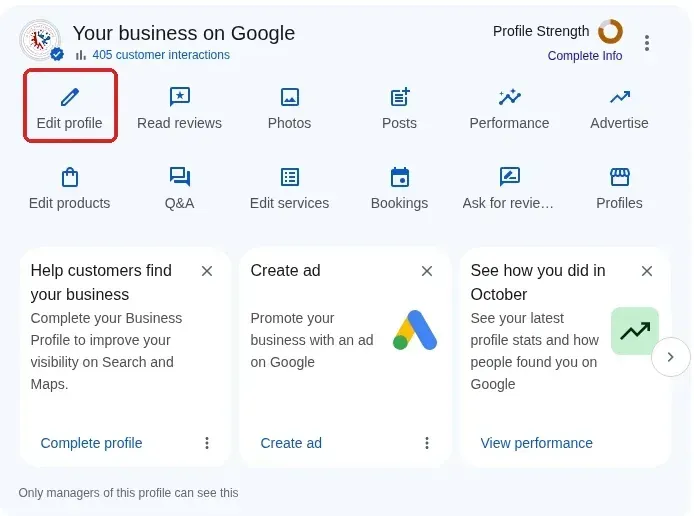
- In the "Your business on Google" panel at the top of the results, click "Edit profile."
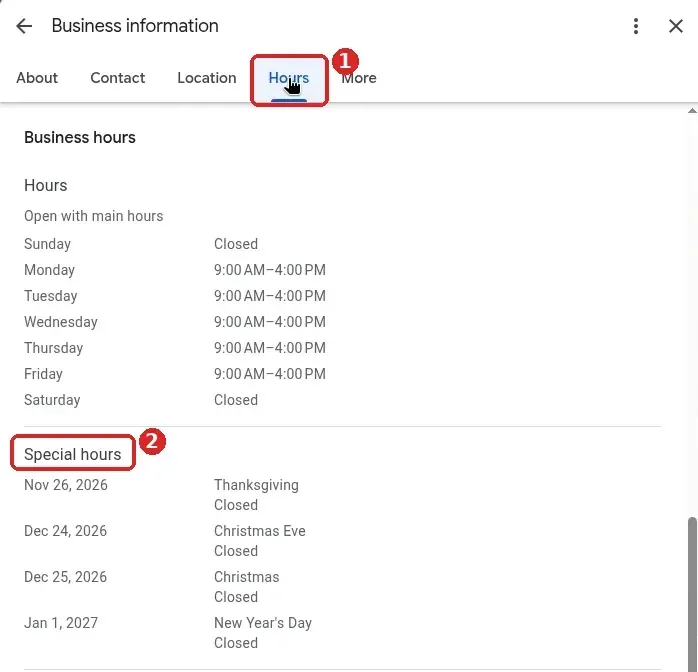
3. In the "Business information" dialog that opens, select the "Hours" tab. Your regular hours and any saved special hours show here as a list.
4. Click the "Special hours" heading to switch the list into edit mode.
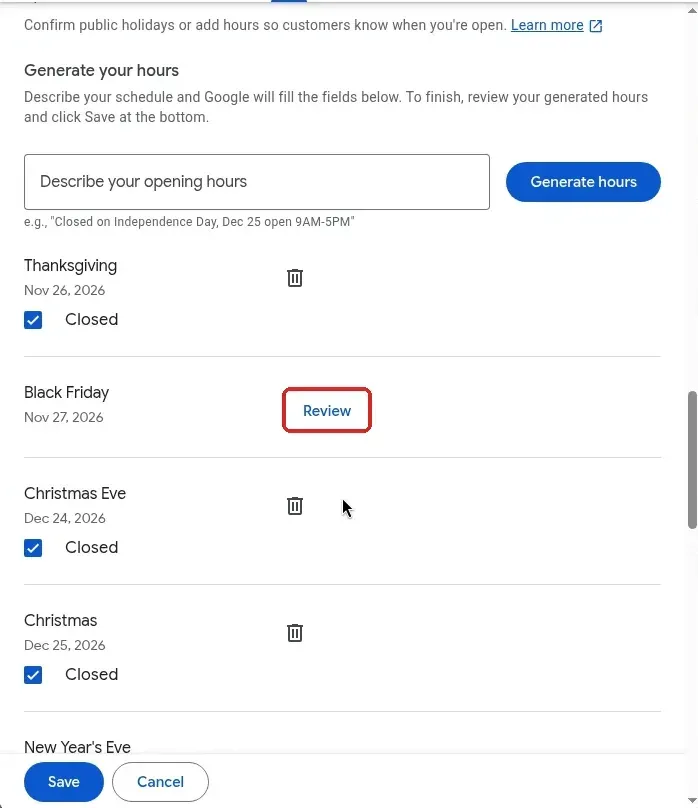
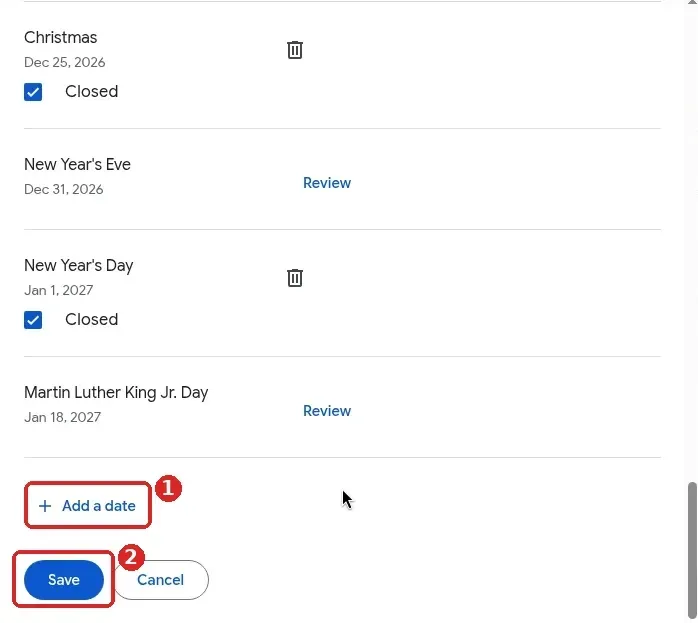
5. Find the holiday in Google's suggested list and click "Review" next to it. For a day Google didn't suggest, scroll to the bottom and click "Add a date."
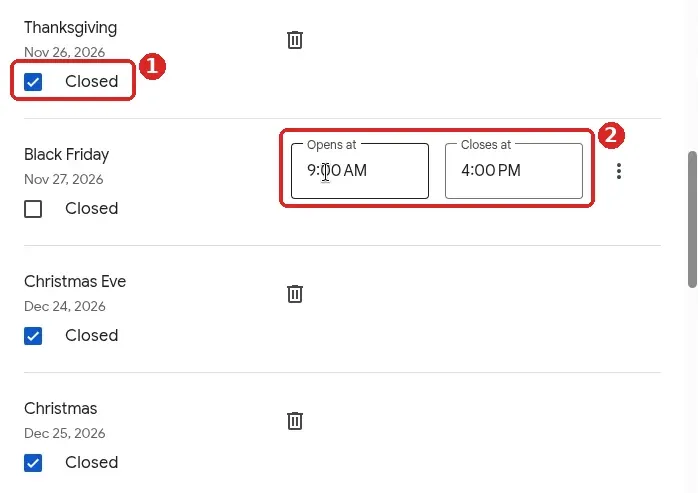
6. Leave the "Closed" box checked if you're closed. If you're open, uncheck it and enter your times in "Opens at" and "Closes at."
7. Click "Save" at the bottom of the dialog.
Once saved, your dates show under "Special hours" on the "Hours" tab, so you can open it again to confirm everything stuck.
Using Generate Your Hours
Near the top of the special hours editor, Google offers "Generate your hours." You type your schedule in plain words in the "Describe your opening hours" box, then click "Generate hours," and Google fills in the date fields for you. Google's note on screen says to review the generated hours and click "Save" at the bottom, so check each date and time before you save.
How to Set Holiday Hours in the Google Maps App
You can also edit your profile from your phone. Google's help page on editing a Business Profile gives these steps for the Google Maps app:
- Open the Google Maps app on your phone.
- At the bottom right, tap Business.
- Tap Edit profile.
- Make your changes, then tap Save.
Google's page doesn't list separate hours screens for the app. Inside Edit profile, find your hours and special hours, then make the same choices as in the Search steps, going by what you see on your screen.
Closed All Day vs. Shortened Holiday Hours
Marking a Holiday as Closed
If you're closed all day, make sure the "Closed" box under that holiday is checked, then click "Save." On our profile, Thanksgiving is set this way.
If you'll be closed for seven days or more, Google says to mark the business as temporarily closed instead of using special hours.
Setting Shorter or Split Hours
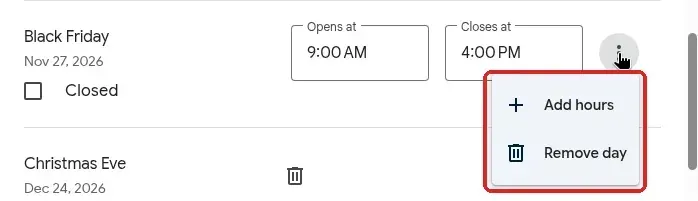
If you're open with different hours, uncheck the "Closed" box and set "Opens at" and "Closes at" for that date. To add a second set of hours on the same date, such as a morning shift and an evening shift, click the three-dot menu at the end of the row, choose "Add hours," and enter the second set.
If you're open past midnight, Google says to split the hours into one set that ends at midnight and one that starts at midnight on the next date. Special hours on that next date replace its regular hours, so add back any you plan to keep.
Adding Several Holidays at Once
Google shows its suggested holidays together in one list in the special hours editor. You can click "Review" on each one you need, set it as closed or open, add any extra dates with "Add a date," and then click "Save" once for all of them.
Businesses that manage many locations have a second option. Google's bulk upload spreadsheet has a "Special hours" column where you enter each date and its hours, with an "x" for an all-day closure. Google warns that empty columns with headings can erase existing information.
How to Edit or Remove Special Hours
To change a date you've already set, click "Edit profile," open the "Hours" tab, and click the "Special hours" heading. Change the "Closed" box or the "Opens at" and "Closes at" times on that date, then click "Save."
To remove a date:
- If the date is marked closed, click the trash can icon next to it.
- If the date has open hours, click the three-dot menu at the end of the row and choose "Remove day."
- Click "Save."
Why Google Asks You to Confirm Holiday Hours
On the official holidays Google tracks, it says a warning may appear on your Business Profile telling people your hours might differ. Google lists these dates by country on its "About holidays on Google" page. Setting special hours ahead of time is how you tell customers your real hours for those days.
That's also why Google suggests dates in the special hours editor. Google's help page says it's a good idea to confirm your hours for official holidays even when they're the same as your regular hours, because it makes clear to customers that your hours are accurate. We've driven to a business Google said was open and found it closed, and we ended up taking our business somewhere else.
On our own profile this season, Google suggested Thanksgiving, Black Friday, Christmas Eve, Christmas, New Year's Eve, New Year's Day, and Martin Luther King Jr. Day. Your list may look different. If your hours change on Small Business Saturday, November 28, add it with "Add a date."
How Long Holiday Hours Take to Show on Google
Google reviews edits to verified Business Profiles before they go live. Its help page on profile edits says edits usually take up to 10 minutes to review, but sometimes it can take up to 30 days. Because of that range, set holiday hours well before the date.
Google shows each edit as Accepted, Pending, or Not approved. Pending means it's still under review, and a Not approved edit might be open to appeal.
Google also says it might update your profile itself if it receives reports that your info isn't accurate. If that happens, you'll get a notification and an alert in the Edit profile section, so look there if your hours change without you touching them.
Check the Rest of Your Profile Before the Holidays
Your Regular Business Hours
Google says special hours only show up when your business hours are set to "Open with main hours." If your weekly hours were never entered, your holiday dates won't appear.
Your Website Link
When we take over a profile, the hours are often wrong and the profile is often missing something the owner didn't know could help. A common one is a profile that isn't properly linked to the business website. In the "Business information" dialog, check your website, and click the link yourself to make sure it goes to the right site. If that site is out of date, our website design and development work can help with the page customers land on.
How Often to Check Your Google Business Profile
Our view is that owners should check their Google Business Profile once a week, and at least once a month. A regular check is how you catch upcoming holidays, new reviews, and any changes Google made to your info.
Frequently Asked Questions
How do I add holiday hours to my Google Business Profile?
Search for your business while signed in, click "Edit profile" in the "Your business on Google" panel, open the "Hours" tab, and click the "Special hours" heading. Click "Review" on a suggested holiday or use "Add a date," set it as "Closed" or enter your hours, and click "Save."
Why aren't my holiday hours showing on Google?
Google says special hours only appear when your business hours are set to "Open with main hours." Edits can also sit in review for a while, usually up to 10 minutes and sometimes up to 30 days, so check whether the edit shows as Pending.
Do I need to set holiday hours if I'm open my normal hours?
Google recommends confirming your hours for official holidays even when they match your regular schedule. Confirming shows customers your hours for that day are accurate.
How do I show that my business is closed for the holidays?
For a closed day, or up to six days in a row, add each date under "Special hours" and leave the "Closed" box checked. If you'll be closed for seven days or more, Google says to mark the business as temporarily closed.
Get Help With Your Google Business Profile
If you'd rather hand off holiday hours and the rest of your profile, our Google Business Profile management service covers the upkeep for you. Questions about your profile are welcome, and you can reach us at (334) 246-1179.
Share This Information